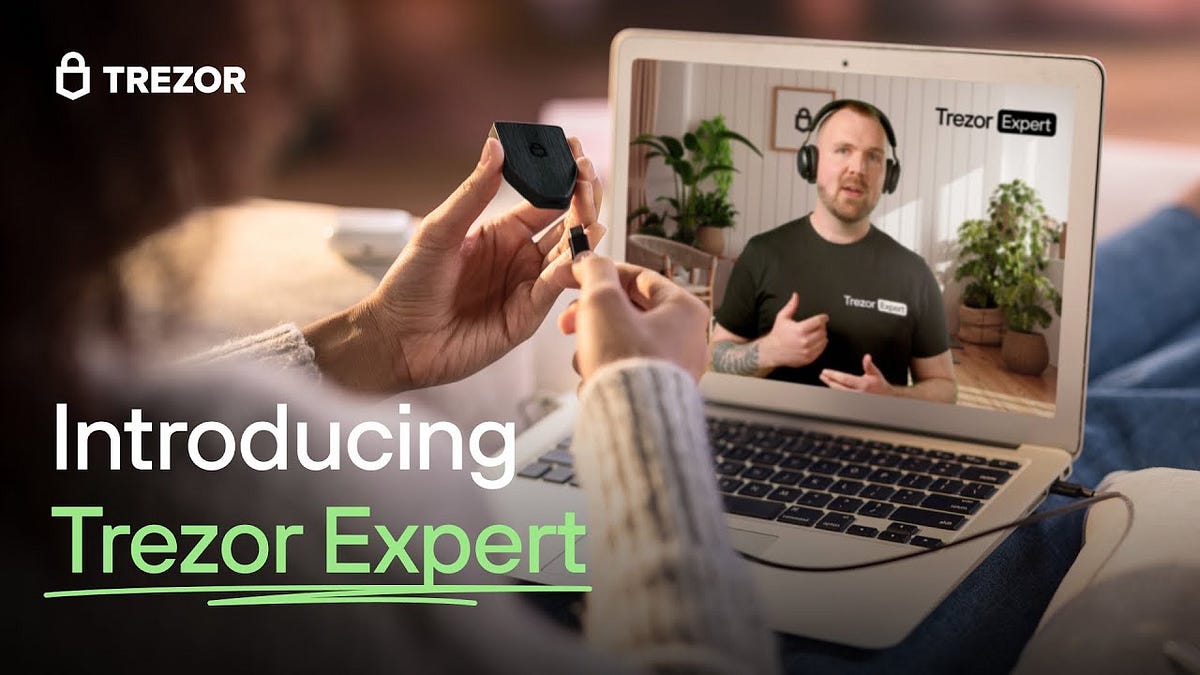
Trezor Login:
Introduction
With cryptocurrencies becoming a major part of personal and professional investment portfolios, security is paramount. A hardware wallet like Trezor provides one of the safest ways to store and manage digital assets because it keeps private keys offline, away from hackers.
Before accessing your funds, you must perform a Trezor login, which is slightly different from standard online wallets. Unlike software wallets, Trezor combines physical security, PIN codes, and recovery seeds to ensure maximum protection. This guide will explain everything about Trezor login, including setup, security tips, troubleshooting, and best practices for a smooth and secure experience.
What is Trezor?
Trezor is a hardware cryptocurrency wallet developed by SatoshiLabs. It provides secure offline storage for hundreds of cryptocurrencies, including Bitcoin (BTC), Ethereum (ETH), Litecoin (LTC), and many altcoins.
Key features of Trezor include:
Offline Private Key Storage: Private keys never leave the device.
PIN Protection: Requires a PIN to access the wallet.
Recovery Seed: 24-word backup phrase to recover funds if the device is lost.
Passphrase Protection: Optional extra security layer.
Compatibility: Works with Trezor Suite, third-party wallets, and multiple operating systems.
Unlike online wallets, Trezor ensures that even if your computer is compromised, your funds remain secure.
Trezor Login Overview
Logging into Trezor is different from traditional login methods because Trezor is a hardware wallet, not a web platform. Accessing your wallet involves connecting the device, entering a PIN, and optionally using a passphrase.
The steps include:
Connecting the Trezor device to a computer or mobile device
Entering the PIN on the device
Accessing the wallet interface through Trezor Suite or compatible wallets
This process ensures that private keys never leave the hardware device, making Trezor one of the most secure ways to manage cryptocurrency.
Step-by-Step Trezor Login
Step 1: Connect Your Trezor Device
Plug your Trezor device into a USB port on your computer or connect via Bluetooth (Trezor Model T). Make sure the cable is original and the connection is stable.
Step 2: Open Trezor Suite
Trezor Suite is the official desktop and web interface for managing your Trezor wallet. You can download it from https://trezor.io/start.
Launch Trezor Suite on your computer or open the web interface.
Select “Connect your Trezor”.
Step 3: Enter the Device PIN
Your device will prompt you to enter a PIN. Trezor’s PIN system uses a randomized on-screen keypad, so your PIN input is never visible to malware or keyloggers.
Enter your PIN using the device screen or computer interface as instructed.
Step 4: Access Your Wallet
Once the PIN is entered, Trezor Suite decrypts the wallet interface, allowing you to:
View balances
Send or receive cryptocurrencies
Access multiple accounts
Manage tokens and coins
Step 5: Optional Passphrase
For added security, you can enable a passphrase. This functions as an additional “25th word” to your 24-word recovery seed. Even if someone steals your Trezor and knows the PIN, they cannot access the wallet without the passphrase.
Trezor Login via Mobile Device
Trezor supports mobile access via apps and third-party wallets:
Download a compatible app like Trezor Suite Mobile or third-party wallets (e.g., BlueWallet, Electrum).
Connect your Trezor device via USB OTG or Bluetooth (depending on device).
Enter your PIN and passphrase as prompted.
Access your wallet to send, receive, or manage cryptocurrencies on the go.
Security Features of Trezor Login
1. Hardware-Based Private Keys
Private keys never leave the device, protecting against malware and hacking.
2. PIN Protection
A PIN code prevents unauthorized access even if the device is physically stolen.
3. Recovery Seed
Your 24-word seed allows wallet recovery in case the device is lost, damaged, or stolen.
4. Passphrase
An optional passphrase adds another layer of security for sensitive holdings.
5. Encrypted Communication
All data transmitted between Trezor and the computer is encrypted, preventing eavesdropping or tampering.
Benefits of Trezor Login
High Security: Hardware storage protects against hacks and malware.
User Control: You have full control of private keys.
Multi-Currency Support: Supports hundreds of cryptocurrencies and tokens.
Backup & Recovery: The 24-word recovery seed ensures funds are never permanently lost.
Cross-Platform Compatibility: Works with Windows, macOS, Linux, and mobile devices.
Common Trezor Login Issues
1. Device Not Recognized
Ensure the USB cable is connected properly.
Try a different USB port or cable.
Update Trezor firmware if needed.
2. Forgotten PIN
Use your 24-word recovery seed to reset the device and create a new PIN.
3. Passphrase Problems
Ensure the passphrase is typed exactly, as even one character difference creates a new wallet.
4. Firmware Update Issues
Follow Trezor Suite instructions carefully to update firmware.
Avoid interrupting the device during updates to prevent lockouts.
Trezor vs Software Wallets Login
FeatureTrezor WalletSoftware WalletsPrivate Keys StorageOffline (hardware)Online or local computerSecurityVery HighModerateBackup24-word recovery seedOften passwords or filesMalware ProtectionStrongModerateMulti-Currency Support100+ cryptocurrenciesVaries
Trezor’s login process is more secure because private keys never leave the device, unlike software wallets that can be vulnerable to malware or phishing.
Best Practices for Trezor Login
Always use official Trezor Suite software or trusted third-party apps.
Never share your recovery seed with anyone.
Keep your PIN and passphrase private.
Enable passphrase protection for sensitive holdings.
Update firmware regularly to patch vulnerabilities.
Use a secure, private network when accessing your wallet.
Tips for Smooth Trezor Login
Keep your device physically secure at all times.
Store backup recovery seeds in offline, fireproof locations.
Use multiple wallets for different purposes if managing large holdings.
Test wallet recovery occasionally to ensure backup integrity.
Avoid connecting your Trezor to untrusted computers.
Conclusion
Trezor login is a unique process that combines hardware security, PIN verification, and optional passphrase protection. Unlike traditional software wallets, it provides offline storage of private keys, making it highly secure against hacking and malware.
By following best practices such as using official software, protecting your PIN and recovery seed, and enabling passphrase security, users can confidently access, manage, and trade cryptocurrencies securely.
For anyone serious about crypto security, Trezor offers the safest login method and management platform, giving full control and peace of mind over your digital assets.